> For the complete documentation index, see [llms.txt](https://docs.realtwin.org/llms.txt). Markdown versions of documentation pages are available by appending `.md` to page URLs; this page is available as [Markdown](https://docs.realtwin.org/cameratwin/documentation/unreal-engine-plugin/ndisplay-setup.md).
# nDisplay Setup
This page describes the steps needed for the nDisplay Setup
## nDisplay Configuration
Create your nDisplay configuration with the appropriate render node(s) for your hardware setup. For more information please check out the related documentation from Epic, [nDisplay Quick Start](https://dev.epicgames.com/documentation/en-us/unreal-engine/ndisplay-quick-start-for-unreal-engine)
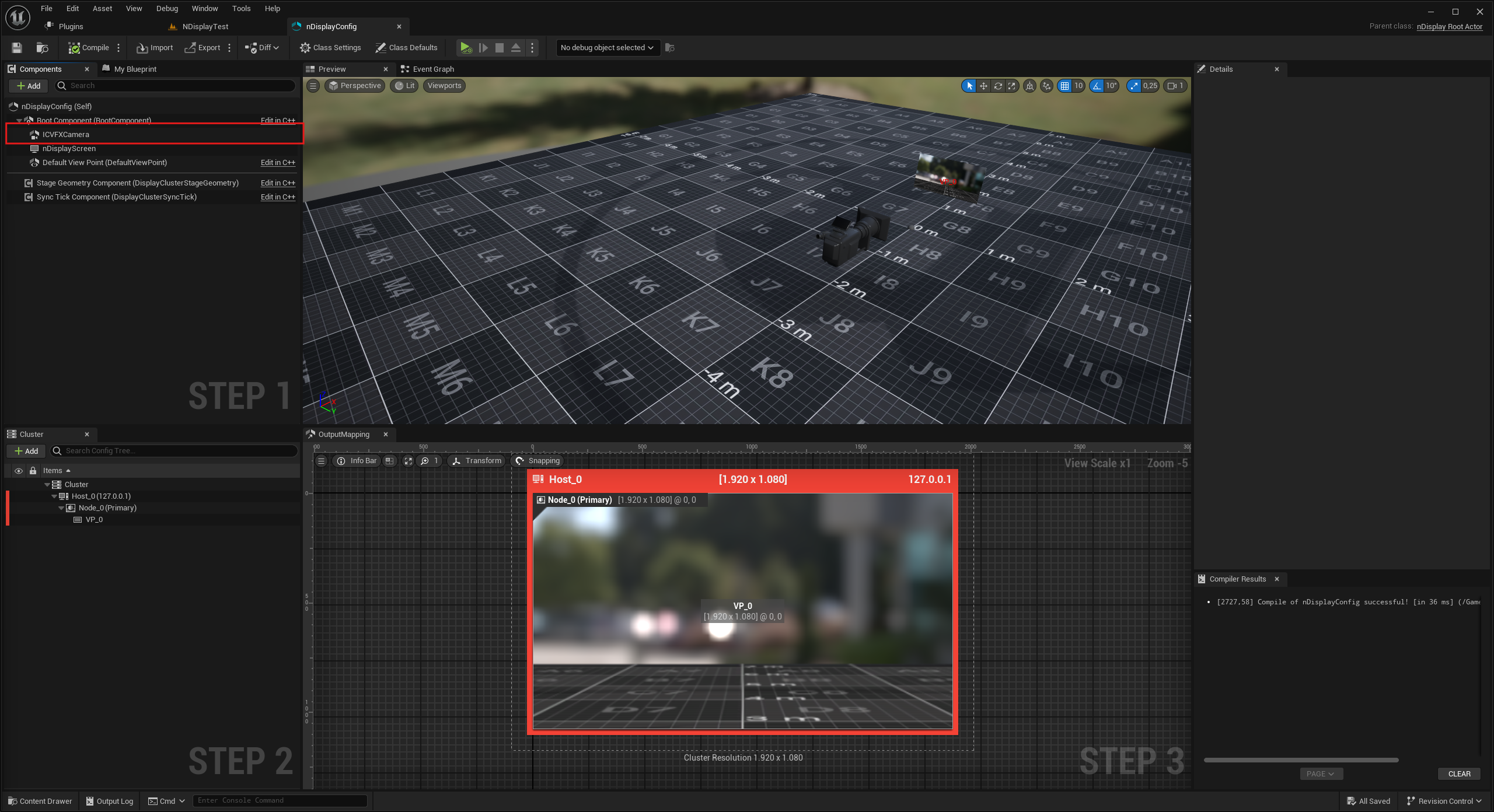
1. Add an ICVFX camera component in your nDisplay setup if you haven't already
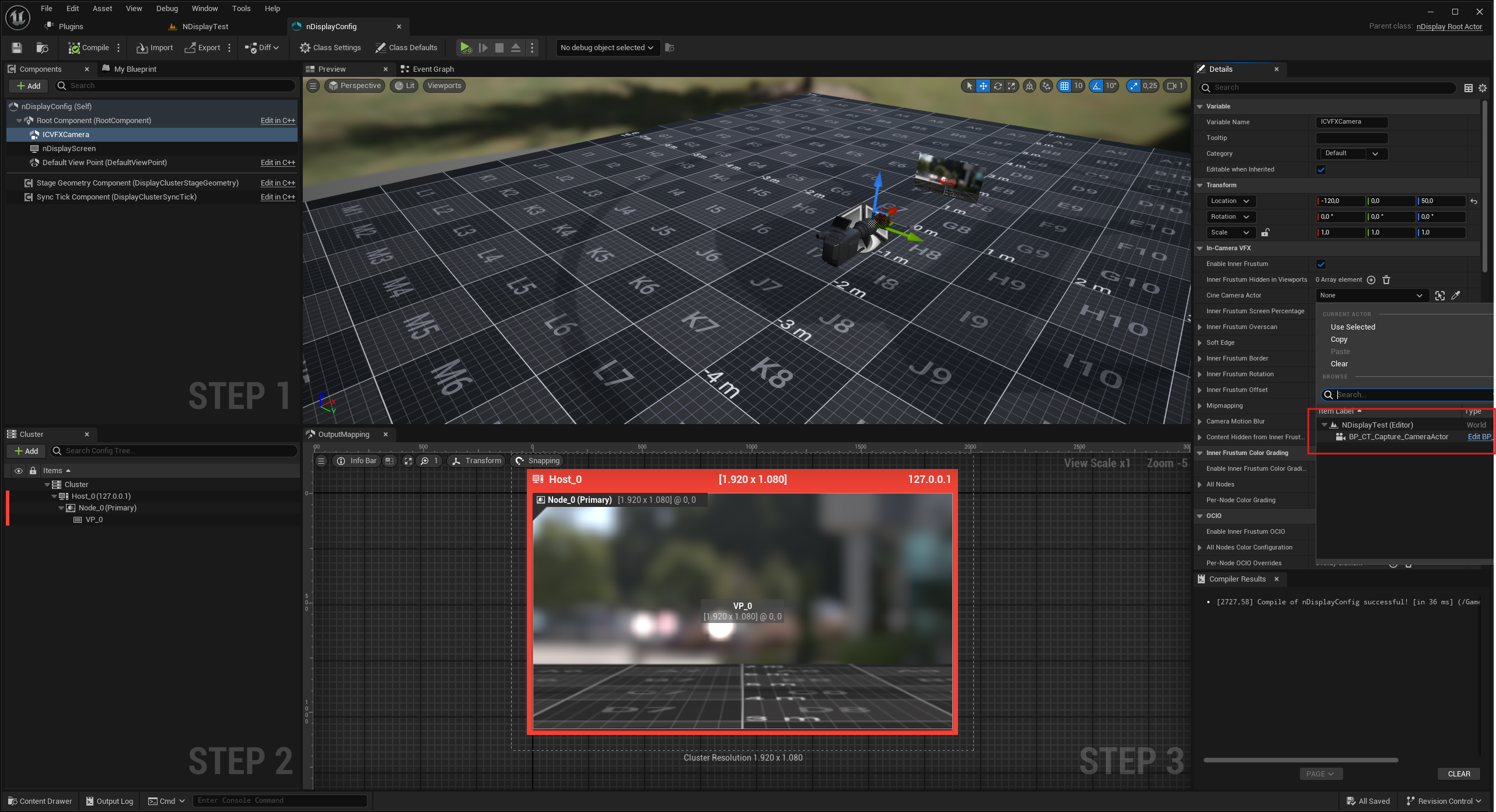
2. Select the ICVFX Camera and find the "Cine Camera Actor" reference in the Details Panel
3. Select the CT Camera Actor of your level. Note: The level containing your CT Camera Actor must be loaded for it to appear in the dropdown.
## LiveLink setup for the nDisplay Nodes
Assuming you have the nDisplay configuration ready and you have added it in your desired level, there are 2 more steps before you can launch the nDisplay nodes
#### Step 1:
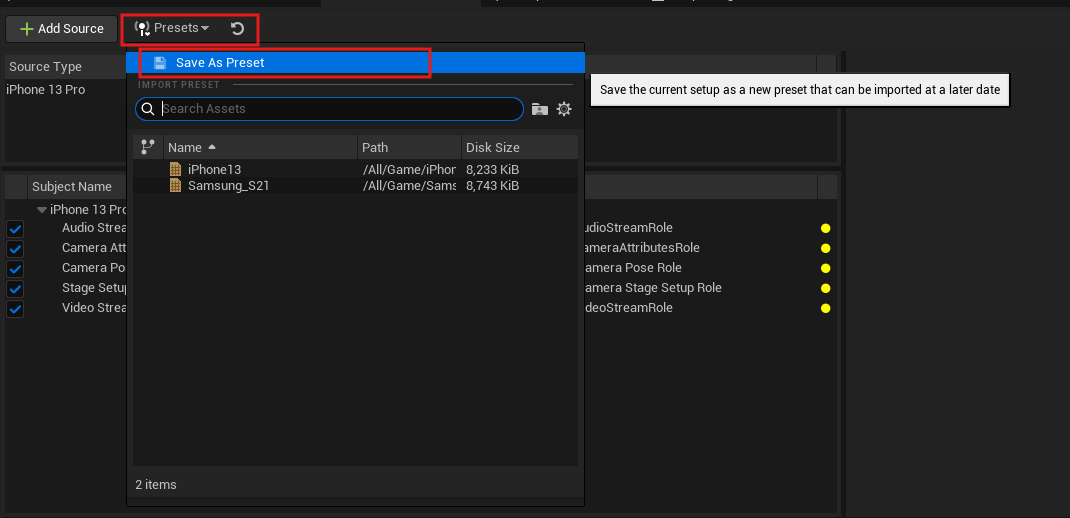
Connect the CameraTwin source via LiveLink and save the LiveLink setup as preset
{% hint style="warning" %}
You will need to update the LiveLink preset on each session, since it's not serialized properly right now. [Changelog Known Issues](/cameratwin/installation/installation-unreal-engine/changelog.md#known-issues)
{% endhint %}
#### Step 2:
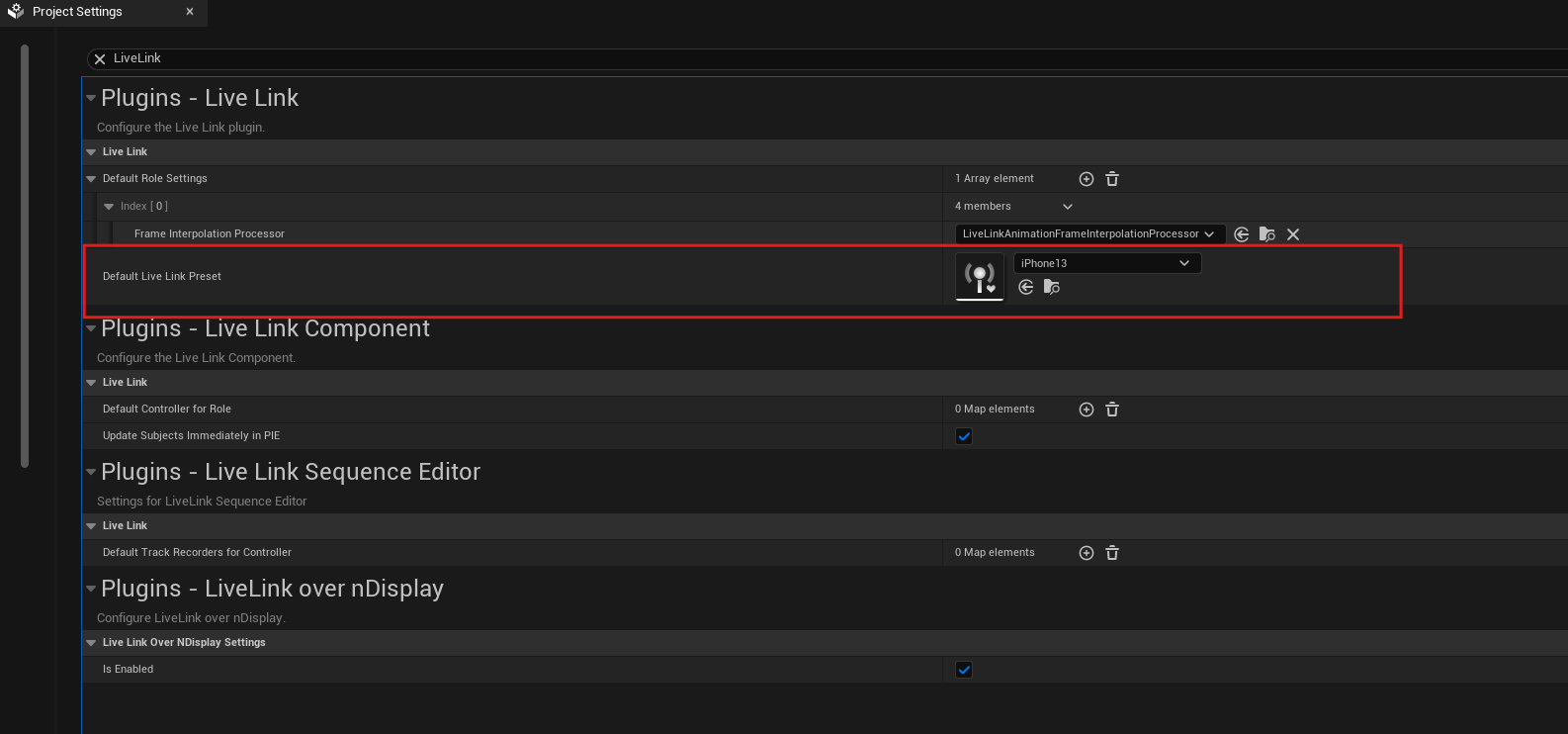
In Project Settings under the LiveLink category you can find the "Default Live Link Preset"—set this to your preset. This will automatically activate the preset during the launch of nDisplay nodes
{% hint style="info" %}
We recommend to perform a quick test of the nDisplay setup using the nDisplay Launch to first ensure that the configuration is working on the same machine.
{% endhint %}
{% hint style="info" %}
Please make sure that all rendering nodes are within the same network and the the CameraTwin Soruce is reachable from all nDisplay nodes.
{% endhint %}